Rewritten paragraph:
Maya has a small home-decor shop in Cape Town, a tidy Shopstar catalogue and a few EFT orders arriving each week. She's posted on Instagram, boosted a Facebook post and watched people like the pictures without buying. Now she's looking at Google Shopping ads and wondering whether spending more rands will bring customers, or just make an already tight budget smaller.
That question matters for South African sellers. A Shopping ad can show a product image, its price in Rands and the store name while someone is actively searching for something to buy. But the ad only works properly when the product information, shipping promise, checkout and budget all make sense for local shoppers.
This guide follows Maya from that first decision to a live campaign. You'll see how to prepare a Shopstar catalogue, set up Merchant Center, choose a sensible starting budget and read the first results without panicking.
Table of Contents
- What Google Shopping Ads Can Do for Your Shopstar Store
- Setting Up Google Merchant Center the Right Way
- Building a Clean Product Feed From Shopstar
- SA Benchmarks, Rand Budgets and ROAS You Can Plan Around
- Launching Your First Google Shopping Campaign
- Feed Optimisation and Common Approval Headaches
- Your First 30 Days With Shopping Ads
What Google Shopping Ads Can Do for Your Shopstar Store
Maya searches for “woven basket Cape Town” on her phone. Instead of seeing only blue text links, a shopper may see product cards with photographs, prices and store names. Each card comes from the seller's product information, so Google can match a product to searches made by people in Johannesburg, Durban, Gqeberha or elsewhere in South Africa.
That's the basic idea behind Google Shopping ads. You aren't writing a separate advert for every search phrase. You give Google a structured product feed, and Google uses details such as the title, price, availability and category to decide when a product could be relevant.

Why the product card matters locally
A photo and a clear rand price answer two questions before the shopper clicks. Does this look like what I want, and can I afford it? That early clarity is useful in a market where ecommerce cart abandonment is estimated at 84.0% to 84.5%, according to Mastercard's South African online retail report.
A boosted social post usually interrupts someone who's browsing. Shopping ads meet a person closer to the buying moment. A shopper searching for “handmade silver earrings” has already described a need, while someone scrolling past a jewellery post may only be admiring the image.
Practical rule: Make the product card answer the first buying questions before you pay for the click.
The ad doesn't guarantee a sale. Your landing page still needs a trustworthy delivery promise, accurate stock, useful photographs and a checkout that feels familiar. Local payment behaviour matters too. The 2026 Stitch Consumer Payments Report records adoption of one-click wallets at 57.5%, BNPL at 38.9%, Capitec Pay at 38.6% and PayShap at 35.0% among respondents, alongside other payment options.
By the end of this walkthrough, Maya has a campaign priced in rands, aimed at South Africa and controlled with a daily amount she can afford to test. She hasn't promised herself unlimited growth. She's built a clean first experiment.
Setting Up Google Merchant Center the Right Way
Merchant Center is the cupboard where Google finds your products. Google Ads spends the budget, but Merchant Center holds the product details that make the advert possible.
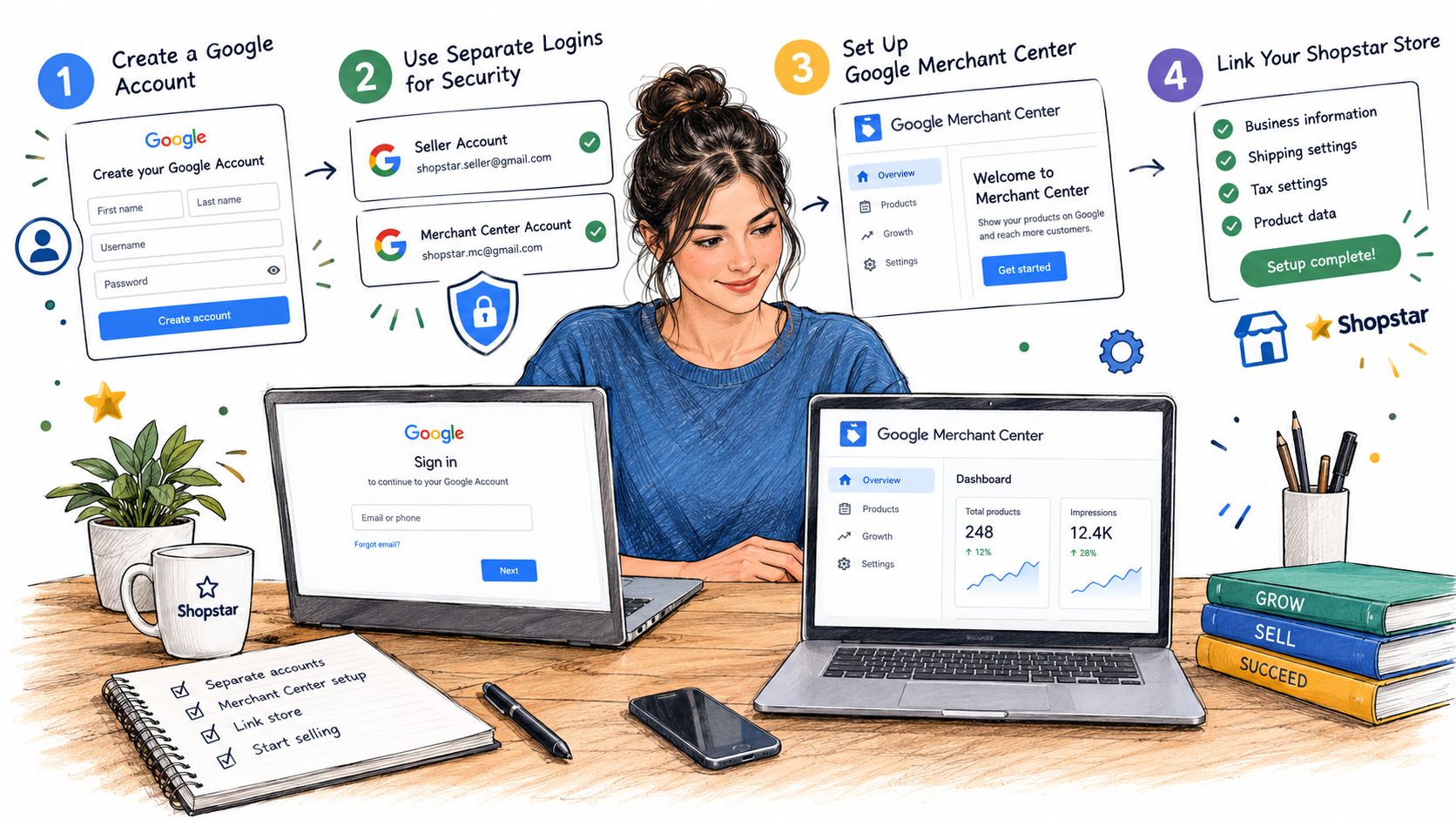
Start with a Google account used for the business. A separate login keeps store access, billing and personal email away from one another. Create a Merchant Center account and enter the business name, website and selling country.
Prove that the store belongs to you
Google needs proof that the website belongs to the seller before it can use the product information. In Merchant Center, open the business information or website section and choose verification. You'll normally use an HTML tag supplied by Google or a DNS verification option. If you're using Shopstar, follow its guidance for placing the verification information in the correct website settings.
The point isn't technical cleverness. Google is checking that a stranger can't submit products for a website they don't control. This Shopstar guide to linking your store with Google can help you follow the platform-specific process.
Set the South African details carefully
Use a real South African street address for the business information. Set the currency to ZAR, and choose the South Africa time zone so your reports line up with local operating hours.
Shipping is where many new stores lose time. Open the shipping settings and create a national courier service with the areas you serve, the delivery charge and the delivery time. If your business offers free delivery above a threshold such as R650, add that rule only if the Shopstar checkout applies it consistently. Don't add local pickup unless you offer it. Many small Shopstar stores use couriers rather than collection points.
Tax settings need the same care. Leave tax off unless you're VAT-registered and your selling arrangement requires tax settings, especially when you sell across borders. The price shown in Merchant Center must match the price a South African shopper sees on the product page.
Before moving on, connect Merchant Center to Google Ads. You'll need access to the Google Ads account that will pay for the campaign. Once the website, shipping and account connection are ready, the product feed becomes the next job.
Building a Clean Product Feed From Shopstar
A product feed is a file that describes what you sell. For a Shopstar store, start in the admin area, open Products and remove the clutter before exporting. Filter out products that are out of stock, still in draft or duplicated. Every unwanted row gives Google another chance to show an item you can't sell.
Export the catalogue, usually as a CSV file, then check it in Google Sheets. You don't need to understand every technical field. Focus on the details that help Google and shoppers identify the product correctly.
The fields that deserve attention
A title such as “Canvas tote bag brown R200” tells a shopper much more than “Tote-001”. Keep the price in rands without a currency symbol in the feed, use a complete secure image link from Shopstar's content system and add the barcode-based GTIN where the product has one.
| Feed Field | Shopstar Source | Gotcha to Avoid |
|---|---|---|
| id | Product record | Don't reuse one ID for different products |
| title | Product name | Avoid internal names such as “Tote-001” |
| description | Product description | Don't leave it thin or copied from another item |
| link | Product page | Check that the page opens without an error |
| image_link | Main product image | Use a full secure image URL |
| price | Store price | Keep the feed price aligned with the storefront |
| availability | Stock status | Don't advertise items that are sold out |
| brand | Brand or maker name | Use a consistent spelling |
| gtin | Barcode, where available | Don't invent a barcode |
| condition | Product condition | Mark the item accurately |
Use a simple Google Sheets check to flag missing titles, zero prices and image links that no longer work. If you're improving the wider store experience, a practical guide to Shopify performance optimization also explains why fast, usable product pages matter, even though Shopstar sellers will apply the principles to their own platform.
Keep the export manageable
A maker selling a few products each week doesn't need to rebuild the file every morning. A weekly export is often easier to maintain for a smaller catalogue, provided stock and prices don't change constantly. Larger or faster-moving stores need more frequent updates because advertising a product after it sells out wastes both the click and the customer's trust.
For Shopstar-specific product feed guidance, use the product feed and category help article before uploading the file. Fix the obvious errors first. A clean, smaller feed is more useful than a large catalogue filled with stale listings.
SA Benchmarks, Rand Budgets and ROAS You Can Plan Around
Benchmarks are planning aids, not promises. Your results will change with product price, competition, delivery costs, photographs, brand trust and the quality of the checkout.
South African reporting places Google Shopping CPC at roughly R3 to R30, while broader Search campaign CPC is reported at R10 to R150, depending on the industry, in South African digital marketing data for 2026. That difference helps explain why a product-led Shopstar store may test Shopping before competing for expensive service-related search terms.
| Metric | Google Shopping (ZA) | Google Search (ZA) |
|---|---|---|
| CPC | Roughly R3 to R30 | R10 to R150, depending on industry |
| CTR | 0.8% to 1.4% average, 2% to 3% top quartile | Varies by industry |
| ROAS | 1.62:1 to 5.11:1, median 2.88:1 | Median 5.17:1 |
| Common break-even reference | Often assessed against margin | Often assessed against margin |
The Shopping CTR and CPC figures come from South African Google Ads CPC and CTR benchmarks. The ROAS comparison and the commonly cited 4:1 break-even target for many advertisers with a 25% gross margin come from South African ROAS benchmarks.
Turn the numbers into a decision
If a click costs R8, then ten clicks cost R80. If your product sells for R500 but leaves little profit after materials, packaging, payment fees and courier charges, revenue alone can make a weak campaign look healthy.
Calculate the margin on one order first. Then choose a target ROAS above your break-even point. A R5,000 monthly budget at a 3:1 return would produce R15,000 in attributed sales, but that isn't the same as R15,000 in profit. The product margin decides whether the return works.
For a first test, decide how many orders you want, what acquisition cost you can afford per order and how much traffic you need to reach that goal. If you need five orders at a maximum CPA of R100, your planned acquisition spend is R500. Add room for clicks that don't convert, but don't choose a budget that your margin can't support.
Category matters. The benchmark source reports purchase conversion rates of 2.5% to 4.5% for low-ticket items, 1.5% to 3% for mid-ticket items and 0.8% to 2% for high-ticket items. Use those ranges as context, not as a promise for your jewellery, homeware or beauty store.
Launching Your First Google Shopping Campaign
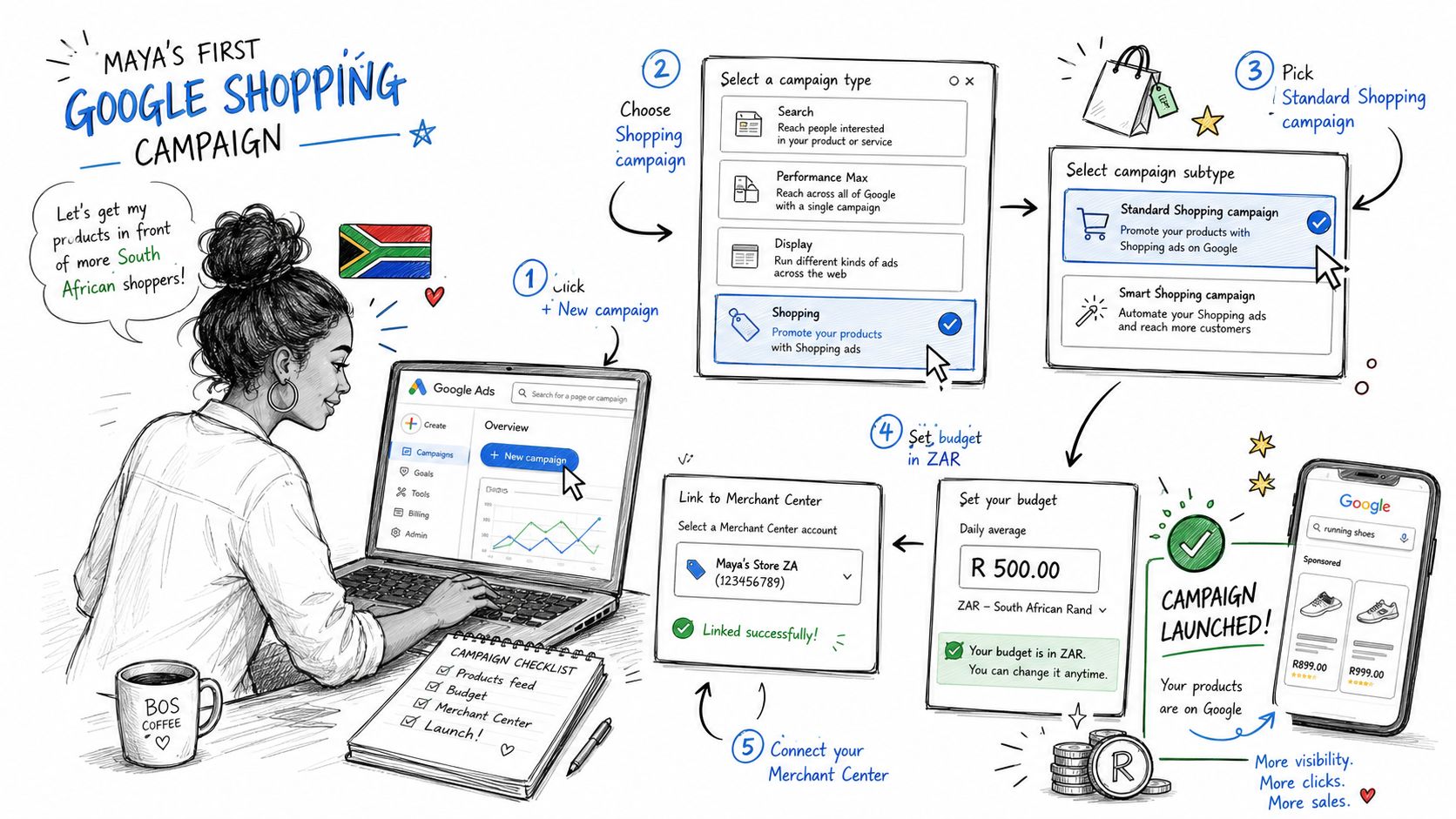
Set up billing in Google Ads and choose South African rands as the account currency. Check this before spending, because currency choices affect how you read every later report.
For a small Shopstar catalogue, keep the first campaign simple. Use one product group for bestsellers and another for longer-tail items, rather than putting every product into one undifferentiated pool. This makes it easier to see whether the products people already like deserve more attention than experimental stock.
Choose a bidding starting point
Manual CPC gives you direct control over the maximum amount you're willing to pay for a click. It suits a new account where there's no useful conversion history and you want to observe the traffic carefully.
Maximise Clicks can help collect visits without requiring a conversion history, but it may pursue volume rather than profitable orders. Whichever option you choose, start with a limit that reflects your margin. Don't let an automated setting decide what a handmade item can afford to pay for a customer.
Set the location to South Africa unless you have a clear reason to serve another country. Use the campaign schedule that matches your ability to answer questions and fulfil orders. Exclude audiences that clearly don't fit your shop, and keep the product groups focused.
For more detail on campaign controls, tactical PMax and bidding tips can help you understand where automation needs guardrails.
Here's the sort of first setup that keeps Maya in control:
- Campaign location: South Africa.
- Product groups: Bestsellers and long-tail products.
- Starter bidding: Manual CPC when she wants tight control, or Maximise Clicks when she needs initial traffic.
- Budget: An amount linked to margin and the test plan, not a random daily figure.
- Tracking: Purchases, revenue and product-level performance.
The first 48 hours are for checking delivery, disapprovals, search terms and spend. Don't change five settings because one morning looks quiet. Watch whether the campaign is receiving relevant clicks and whether purchase tracking records the orders that happen.
The setup becomes easier to understand when you see the campaign as a shop window. Merchant Center supplies the stock cards, Google chooses when to display them and your landing page has to complete the sale.
Feed Optimisation and Common Approval Headaches
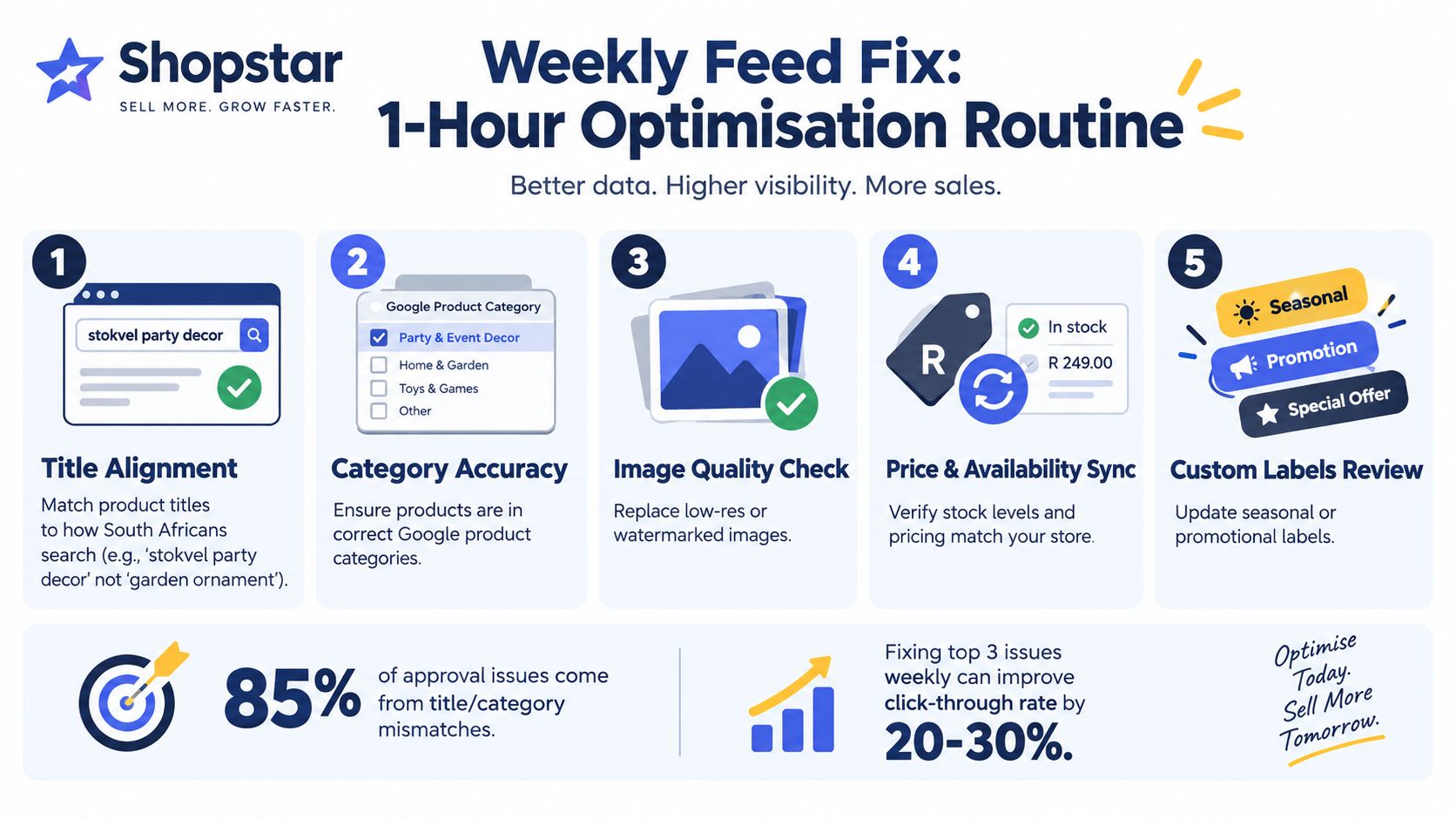
Reserve one short session each week for the feed. Start with the products that matter most, not the entire catalogue.
A practical weekly check
- Titles: Write what a South African shopper might type, such as “stokvel party decor” instead of “garden ornament” when that's the actual use.
- Categories: Confirm that the Google product category matches the item, especially for jewellery, clothing and home accessories.
- Images: Replace low-resolution, misleading or watermarked images.
- Price and stock: Compare Merchant Center with the live Shopstar product page.
- Shipping: Check that the national courier rule still matches what the checkout charges.
- Policies: Make returns, delivery and contact information easy to find.
Fix the cause before requesting a review
Open Merchant Center and go to Products, then Needs attention or Diagnostics, depending on the account view. Select the affected item to see whether Google found a currency mismatch, missing information, unavailable stock or a policy problem.
For a currency issue, correct the price in the feed and confirm the storefront uses the same ZAR amount. For a missing return policy, add the policy to the website and complete the relevant Merchant Center settings. For a thin description, improve the product information instead of repeatedly asking for approval. Lifestyle photographs that make an item appear adult or suggest prohibited content may need a clearer, product-focused image.
Request a review after you've made the change and the product page reflects it. A review can't repair a feed that still contains the same error.
Before uploading, ask: Is the title clear, is the price accurate, is the item available, does the image work, is the category correct and can a buyer understand delivery and returns?
South African sellers should also keep policy changes on their radar. Google's Merchant Center change and policy ecosystem includes South Africa, so local availability doesn't remove the need to follow account and content rules.
For account-specific troubleshooting, use Shopstar's guide to solving Merchant account issues and work through the reported error rather than guessing.
Your First 30 Days With Shopping Ads
A first month should create understanding, not pressure you into spending beyond what the business can carry. Give each week one job.
Week one builds the foundation
Verify the website, connect Merchant Center to Google Ads and set ZAR correctly. Prepare the Shopstar feed, remove unavailable products, check images and create the national courier rule. Confirm that prices include VAT where applicable and that the checkout explains EFT clearly.
Week two starts small
Launch one focused Shopping campaign with a daily budget between R200 and R400, as outlined in the launch plan. Keep the product groups simple and use South Africa as the target. Check that clicks land on the right product pages and that purchase tracking records completed orders.
Week three teaches you what to remove
Read the search terms and product reports. Pause products that attract irrelevant traffic or cannot support the acquisition cost. Add negative terms where searches clearly don't match what you sell. Don't judge a product only by clicks, because a cheap click that never has a chance of becoming an order still uses the budget.
Week four gives winners room
Increase attention on products that attract relevant visits and profitable orders. Create a second priority group only when the first group is understandable. Test remarketing carefully, with clear consent and useful messages, rather than showing the same product endlessly to everyone who visited.
Keep this list beside the account:
- Claimed website: Google can verify that you control the store.
- Correct shipping: Courier charges and delivery expectations match checkout.
- Accurate prices: Product prices include VAT where required and match the feed.
- EFT messaging: Customers can see how payment works before they abandon checkout.
- Working measurement: Purchases and revenue are recorded consistently.
Shopping doesn't replace Instagram, TikTok Shop or Marketplace. It gives a product-led store another way to meet people who are already searching. Your job is to choose the channels your team can fulfil well, keep the promises consistent and spend only where the margin allows.
Shopstar gives makers and creators a no-code store with local payments, shipping, orders, inventory and analytics in one dashboard. If you want to prepare your catalogue for Google Shopping ads and sell through other channels too, start building with Shopstar and take your first store setup step today.